






Choosing the right monitor connector for your monitoring equipment project can feel overwhelming. You must check compatibility with your laptop and devices to ensure stable performance and clear resolution.
CNLINKO supports you by offering customized solutions for every connector type, helping you meet specific project needs with confidence.
Key Takeaways
- Choose the right monitor cable type based on your equipment's compatibility. HDMI, DisplayPort, and USB-C are ideal for modern setups.
- Always verify the maximum supported resolution and refresh rate of your cables. This ensures optimal performance and reduces input lag.
- Inspect cables for damage before installation. Bent pins or exposed wires can lead to connection problems.
- Consider project-specific needs when selecting a monitor. High resolution and fast refresh rates are crucial for real-time data analysis.
- Utilize CNLINKO's customized connectors for tailored solutions that enhance compatibility and reliability in your monitoring projects.
Monitor Connector Options
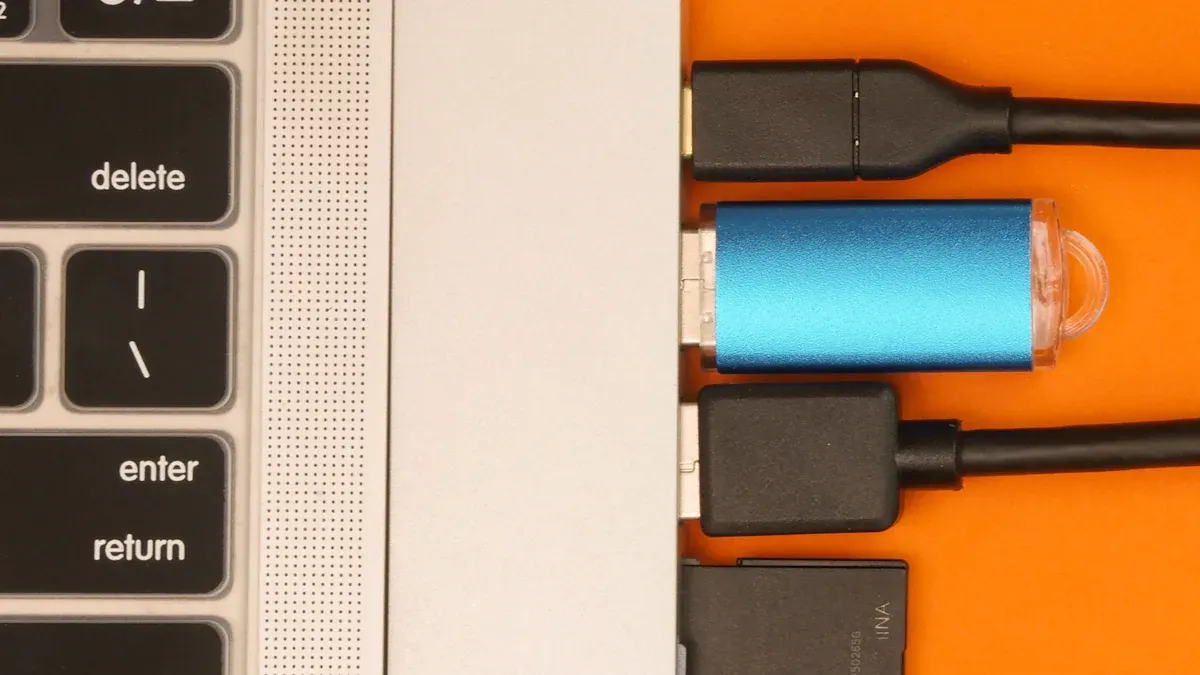
When you select a monitor for your project, understanding the types of monitor cables and ports is essential. You encounter several common monitor cable types, each designed for specific uses and performance standards. Let’s explore the most widely used computer monitor cable types and how they impact your monitoring equipment.
HDMI, USB-C, DisplayPort
You often see HDMI, USB-C, and DisplayPort as the leading types of cables for computer monitors. These monitor cable types support high-definition video and audio, making them ideal for modern monitoring setups. HDMI cable types for monitors deliver reliable connections for most consumer and industrial displays. USB-C stands out for its versatility, supporting both power delivery and data transfer. DisplayPort monitor cable types offer advanced features for professional-grade monitors.
Tip: Always check the maximum supported resolution and refresh rate before choosing a cable for your monitor.
| Connector | Maximum Resolution | Maximum Refresh Rate |
|---|---|---|
| HDMI 2.1 | Up to 10K | 60Hz (10K), 120Hz (4K) |
| DisplayPort 2.1 | Up to 16K | 240Hz (4K) |
| USB-C | Up to 4K or 8K | Varies by device |
You notice that HDMI supports up to 10K resolution, while DisplayPort reaches 16K with higher refresh rates. USB-C varies depending on the device, but it often supports up to 8K. These different types of monitor cables ensure compatibility with the latest monitors and equipment.
VGA, DVI
You may encounter VGA and DVI when working with older monitoring equipment. These types of cables for monitors have unique characteristics. VGA uses analog signals, which can lead to image degradation. DVI supports both digital and analog signals, offering better image quality and higher resolutions.
| Feature | VGA | DVI |
|---|---|---|
| Signal Type | Analog | Digital (and Analog) |
| Resolution Support | Up to 1080p (1920x1080) | Up to 2560x1600 (Dual-Link) |
| Quality | Prone to degradation | Higher image quality |
| Adaptability | Limited (needs converters) | Versatile (can adapt to VGA) |
You face compatibility challenges with VGA and DVI, especially when connecting to modern monitors. You may need converters or adapters to bridge the gap between old and new monitor cable types.
- Common monitor cable types evolve to support faster data transfer and improved image quality.
- Advancements in connector technology enhance performance, miniaturization, and integration for monitoring projects.
Note: Mismatched components and communication protocol discrepancies often cause connection failures. Always verify compatibility between your monitor and cable before installation.
How to Choose the Right Monitor Cable
Compatibility Factors
Selecting the right monitor connector for your laptop or monitoring equipment project requires careful attention to compatibility. You must match monitor cable types to your project’s requirements. Begin by checking the physical port options on both your laptop and the monitor. HDMI, DisplayPort, and USB-C are the most common monitor cable types for modern setups. Older devices may use VGA or DVI, but these often limit resolution and performance.
- Physical port options on your laptop and monitor
- Bandwidth limitations that affect resolution and refresh rates
- Features such as audio support and daisy-chaining capabilities
You should always verify the input ports available on your laptop and monitor. HDMI and DisplayPort support high resolution and fast refresh rates, while USB-C offers versatility for data and power. When you select a monitor connector, consider the physical size vs resolution. Larger monitors require cables that support higher resolutions to maintain image clarity.
Tip: Use cables that match the highest supported resolution and refresh rates of your laptop and monitor. This ensures optimal performance and reduces input lag.
Cable compatibility directly affects the reliability of your monitoring equipment. The following table highlights key factors that impact performance:
| Factor | Impact on Performance and Reliability |
|---|---|
| Cable Type | Signal quality and transmission efficiency vary by monitor cable types. |
| Cable Age | Older cables may fail more often and reduce reliability. |
| Installation Quality | Poor installation can cause faults and communication issues. |
| Cable Length | Longer cables increase signal degradation and risk of failure. |
| Joint Quality | Low-quality joints allow moisture and shorten cable lifespan. |
| Environmental Conditions | External factors affect cable performance and monitoring accuracy. |
You must inspect cables for physical damage before installation. Bent pins or exposed wires can cause connection problems. Always test different input ports on your laptop to avoid overlooking potential port failures.
- Using outdated cable standards like VGA or DVI-D can create compatibility issues.
- Neglecting cable condition leads to unreliable connections.
- Not switching graphics ports may hide port-specific problems.
Industry standards guide professional installations. AVIXA standards recommend proper spacing and installation on AV racks. BICSI standards focus on low-voltage installations for data systems. The National Electrical Code (NEC) specifies cable requirements in plenum spaces to protect against fire hazards.
Resolution and Refresh Rate
You must consider resolution and refresh rates when choosing monitor cable types for your laptop or monitoring equipment. High resolution monitors demand cables with greater bandwidth. HDMI and DisplayPort cables support 4K, 8K, and even 16K resolutions. USB-C cables often support up to 8K, depending on the device.
| Feature | Specification Details |
|---|---|
| Bandwidth | Up to 96Gbps |
| Supported Resolutions | 4K240, 8K60, 10K, 12K, 16K |
| Color Depth | 10-bit and 12-bit color |
| Cable Type | Ultra96 HDMI Cable (supports all HDMI 2.2 applications) |
| EMI Emission | Very low EMI emission |
You should select cables that support the highest resolution and refresh rates required by your monitoring project. For industrial settings, Ultra96 HDMI cables provide excellent performance for high resolution displays. DisplayPort cables offer advanced features for professional monitors, including daisy-chaining and low input lag.
Note: Physical size vs resolution matters. Larger monitors need cables that support higher resolutions to avoid pixelation. Refresh rates and input lag also affect monitoring accuracy. Choose cables that minimize input lag for real-time monitoring.
When setting up external monitors, avoid common mistakes:
- Using outdated cable standards instead of HDMI, DisplayPort, or USB-C
- Failing to check cable condition before installation
- Not testing all input ports on your laptop and monitor
You should always follow industry standards for cable selection and installation. Proper spacing, high-quality joints, and compliance with safety codes ensure long-term reliability.
You can optimize your monitoring equipment by understanding how to choose the right monitor cable. Match monitor cable types to your laptop and monitor, consider resolution and refresh rates, and follow best practices for installation. This approach guarantees stable performance and clear images for your monitoring projects.
Buying a New Monitor: Connector Considerations
Device and Port Matching
When buying a new monitor for your monitoring equipment project, you need to focus on device and port compatibility. You must check the available ports on your laptop and the monitor. Most modern monitors offer a range of input options, including hdmi, displayport, and usb-c. These ports support different monitor cable types, which affect the resolution and refresh rate you can achieve.
You should look for monitors that provide multiple input choices. For example, the ViewSonic monitor includes displayport, hdmi, and usb-c ports. This flexibility allows you to connect your laptop using the most suitable monitor connector. If your laptop supports usb-c 3.1 or Thunderbolt 3, you can use a usb-c cable to achieve 60 FPS at a resolution of 2560x1440. This setup eliminates the need for adapters and ensures a stable connection.
- Check the input ports on your laptop and monitor.
- Match the monitor cable types to your device capabilities.
- Select a monitor connector that supports your required resolution and refresh rate.
| Monitor Model | Input Ports Available | Maximum Resolution | Recommended Cable Type |
|---|---|---|---|
| ViewSonic | HDMI, DisplayPort, USB-C | 2560x1440 @ 60FPS | USB-C 3.1 |
| Dell UltraSharp | HDMI, DisplayPort | 3840x2160 @ 60Hz | DisplayPort |
| LG UltraFine | USB-C | 3840x2160 @ 60Hz | USB-C |
You must avoid mismatched monitor cable types. If your laptop only has hdmi, choose a monitor with hdmi input. If you need higher resolution, displayport or usb-c may offer better performance. Always verify the monitor connector compatibility before making a purchase.
Tip: You can future-proof your monitoring equipment by selecting monitors with multiple input options. This approach allows you to upgrade your laptop or cables without replacing the monitor.
Project-Specific Needs
You must consider your project’s unique requirements when buying a new monitor. Monitoring equipment projects often demand specific features, such as high resolution, fast refresh rates, and reliable connections. You should evaluate the monitor cable types that best support your workflow.
If your project involves real-time data analysis, you need a monitor with low input lag and high refresh rates. Displayport cables excel in these scenarios, offering advanced features for professional monitoring. For portable setups, usb-c cables provide power delivery and data transfer in one connection, reducing cable clutter.
You may encounter challenges with older laptops that only support hdmi or vga. In these cases, you should select a monitor with compatible input ports or use adapters. However, adapters can introduce signal degradation and limit resolution.
CNLINKO’s customized cylindrical connectors address these challenges by offering tailored solutions for various monitor cable types. You can request connectors that match your laptop’s input ports and your monitor’s specifications. CNLINKO designs connectors to support high resolution, fast refresh rates, and long-term reliability. You benefit from enhanced compatibility and reduced installation time.
- Identify the monitor cable types required for your project.
- Choose a monitor connector that matches your laptop and monitor input ports.
- Consider CNLINKO’s customized connectors for unique monitoring equipment needs.
| Project Type | Recommended Monitor Cable Type | Key Features Needed | CNLINKO Solution |
|---|---|---|---|
| Industrial Monitoring | DisplayPort | High resolution, reliability | Custom cylindrical connectors |
| Portable Monitoring | USB-C | Power + data, compact size | Assembled USB-C connectors |
| Legacy Systems | HDMI, VGA | Adapter compatibility | Hybrid connectors |
Note: You can contact CNLINKO for expert advice on selecting the right monitor connector and cable for your monitoring equipment project. Their team provides solutions that ensure compatibility and durability.
You improve your monitoring setup by matching device ports, monitor cable types, and project requirements. You achieve stable performance and clear resolution by choosing the right monitor connector and leveraging CNLINKO’s expertise.
External Monitor Setup Challenges
Installation and Maintenance
You face several challenges when setting up an external monitor for your laptop. You may struggle to configure multiple displays, encounter a blank screen on a secondary display, or notice issues with resolution and color. You must verify that all displays are powered on and that video cables are properly plugged into the correct ports. You should confirm that the displays are enabled in your graphics settings, such as the Intel Graphics Command Center.
- Unable to set up multiple external monitors
- Blank screen on secondary or third display
- Power issues with displays
- Loose or improperly connected video cables
- Displays not enabled in software
You improve installation accuracy by following a checklist:
- Confirm the display configuration supports your desired setup.
- Check that your laptop has the latest graphics driver installed.
- Reseat the video cable on both ends to ensure a secure connection.
Connector design plays a key role in maintenance. You reduce accidents and lower insurance claims by using connectors designed for easy inspection and replacement. Proactive maintenance programs cut vehicle downtime by up to 50% and reduce costs by 30%. The table below highlights the impact of maintenance on monitoring equipment:
| Metric | Result | Details |
|---|---|---|
| Fewer accidents in fleets | Up to 69% fewer | Maintenance programs improve safety |
| Lower insurance claims | 40% lower | Regular inspections and video-based safety |
| Vehicle downtime reduction | Up to 50% cut | Proactive maintenance reduces downtime |
| Maintenance cost reduction | 30% lower | Proactive maintenance lowers costs |
Tip: You maintain picture quality and color accuracy by inspecting cables and connectors regularly. You should replace damaged cables to prevent loss of pixels and resolution.
Long-Term Reliability
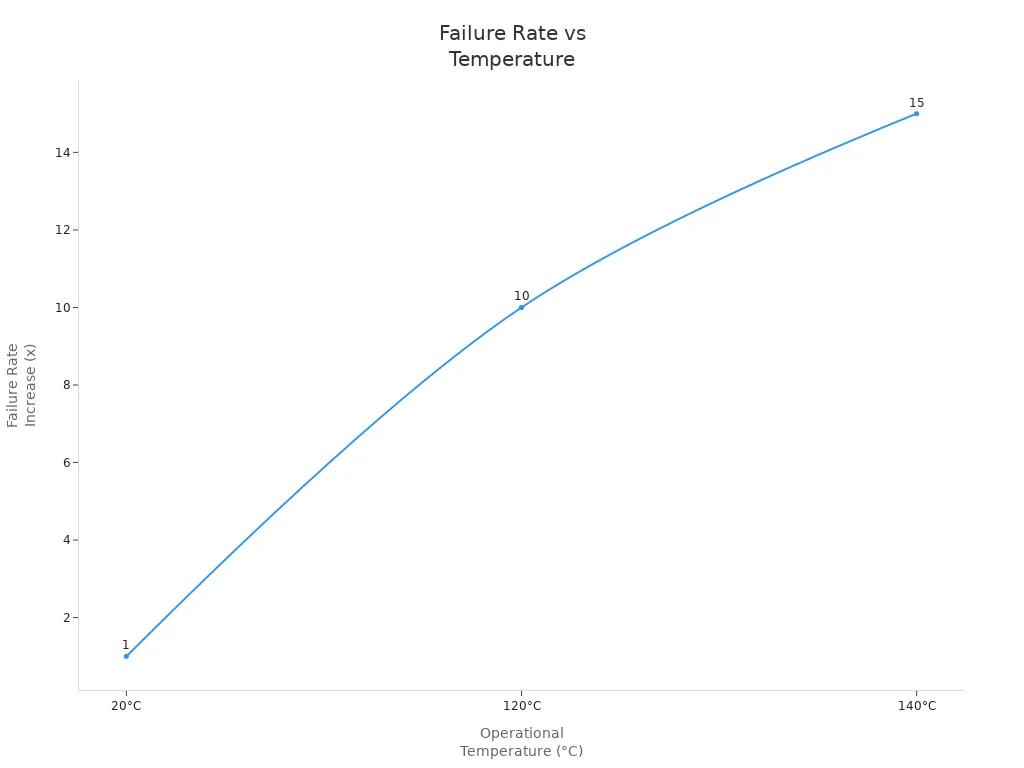
You must consider long-term reliability when choosing connectors for your external monitor setup. High operational temperatures increase connector failure rates. At 20°C, connectors show a base failure rate. At 120°C, the failure rate increases tenfold. At 140°C, the rate rises fifteen times. You protect your laptop and monitor by selecting connectors rated for your environment.
| Connector Type | Operational Temperature | Failure Rate Increase |
|---|---|---|
| 20°C | Base Failure Rate | 1x |
| 120°C | 10 times greater | 10x |
| 140°C | 15 times greater | 15x |
You maintain accuracy in your monitoring equipment by choosing connectors that withstand high temperatures and frequent use. You preserve pixels, resolution, and color over time. You ensure picture quality and color accuracy by selecting connectors with robust design and proper size for your laptop and external monitor. You achieve reliable display performance and minimize downtime.
Note: You extend the lifespan of your monitoring equipment by prioritizing connector quality, regular maintenance, and proper installation. You safeguard pixels, color, and resolution for consistent accuracy.
Choosing the right connector and cable for your monitor setup ensures reliable performance for your laptop and monitoring equipment. You benefit from CNLINKO’s customized cylindrical connectors, which deliver superior durability, universal compatibility, and high protection ratings.
| Feature | CNLINKO Connectors | Standard Connectors |
|---|---|---|
| Durability | ≥2000 cycles | Lower ratings |
| Protection | IP68/IPX9K | Lower protection |
You address challenges like limited space and harsh environments by selecting tailored solutions. Custom connectors help your laptop maintain stable signal transmission and reduce long-term costs. Reach out to CNLINKO for expert advice and solutions that optimize your monitor and laptop performance.
FAQ
What makes CNLINKO connectors suitable for monitoring equipment projects?
You get connectors designed for high durability and reliability. CNLINKO offers IP68/IPX9K protection, which keeps your equipment safe in harsh environments. You can request custom solutions to match your project’s specific needs.
How do I choose the right connector for my monitor setup?
You should check your device ports and required resolution. Match the connector type—HDMI, DisplayPort, or USB-C—to your equipment. If you need help, CNLINKO’s team can guide you to the best option.
Can CNLINKO connectors handle high temperatures and tough conditions?
Yes. You benefit from connectors built to withstand high operational temperatures and frequent use. CNLINKO’s cylindrical connectors maintain stable performance, even in demanding industrial environments.
Do I need special tools to install CNLINKO connectors?
No. You can install most CNLINKO connectors easily by hand. The design supports quick assembly and maintenance. If you need technical support, CNLINKO provides clear instructions and assistance.
How can I get a customized connector solution for my project?
You can contact CNLINKO directly through their website or inquiry form. Share your project requirements. The team will recommend or design a connector that fits your monitoring equipment perfectly.